
Download Windows Audio Loudness Equalizer – Free Volume Control, Equalizer & Audio Management Tool
Overview
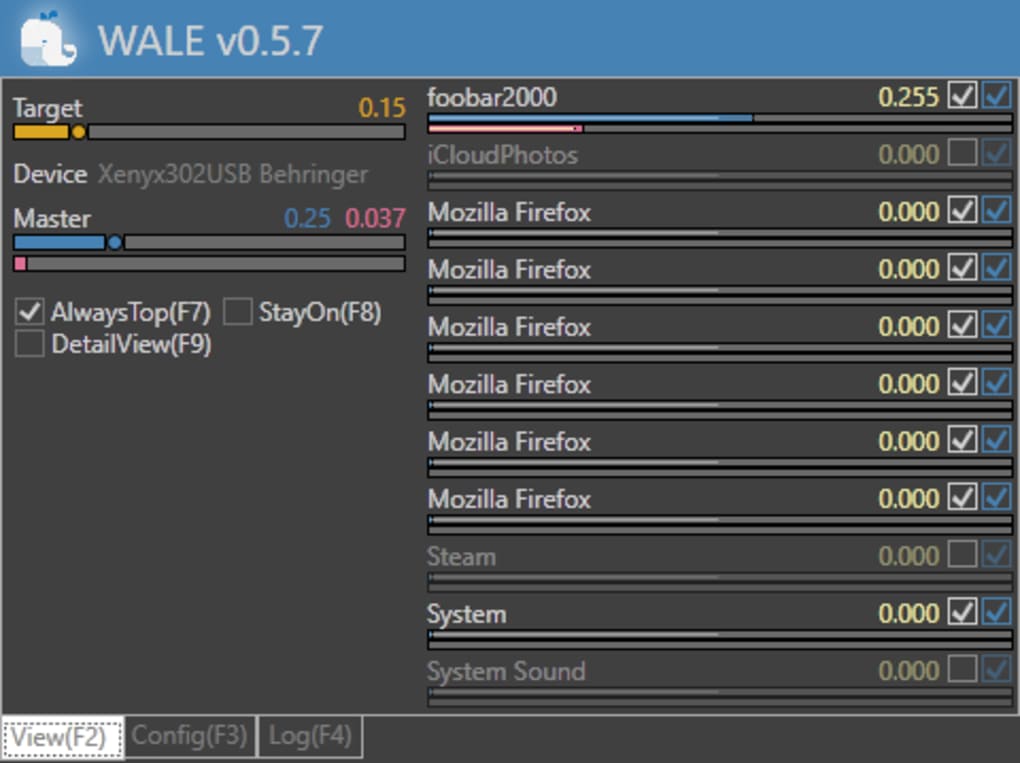
Windows Audio Loudness Equalizer (often abbreviated as WALE) is a free, lightweight utility that gives Windows users granular control over the sound output of individual applications. Unlike the default Windows mixer, which only offers a single global volume slider, WALE lets you raise or lower the loudness of each program, adjust bass and treble, and even mute apps that normally lack a built‑in mute button. The tool works by applying a post‑processing layer after the original program’s audio engine, meaning you can boost a game that is already at 100 % volume, or silence background chat applications without touching their internal settings.
While the interface leans toward an industrial, no‑frills design, power users, sound engineers, and gamers appreciate the depth of control it provides. WALE is completely free, receives regular updates, and runs on any modern Windows desktop (Windows 7 through Windows 11). Whether you need a quick fix for a noisy notification, want to fine‑tune the bass on your favorite music player, or require precise audio levels for testing purposes, Windows Audio Loudness Equalizer delivers a surprisingly robust feature set without a price tag.
Key Features, Compatibility, and Easy Installation
Feature List
- Per‑application volume sliders for absolute control.
- Independent bass, treble, and mid‑range adjustments per app.
- Ability to set default “silent” profiles for background utilities.
- Real‑time audio preview so you can hear changes instantly.
- Support for Windows 7, 8, 10, and 11 (64‑bit and 32‑bit).
- Export and import of custom presets for quick switching.
- Lightweight footprint – under 5 MB install size.
- Command‑line options for advanced automation scripts.
- Compatibility with popular audio APIs (WASAPI, DirectSound).
- Free updates with optional telemetry to improve stability.
Operating System Compatibility
WALE is built exclusively for the Windows desktop environment. It runs on all supported versions of Windows from 7 SP1 onward, including Windows 8/8.1, Windows 10, and the latest Windows 11 builds. Both 32‑bit and 64‑bit architectures are supported, though 64‑bit installations are recommended for better performance and future‑proofing.
Installation & First‑Run Setup
Getting Windows Audio Loudness Equalizer up and running is straightforward. Follow these steps:
- Visit the official WALE download page and click the Download button. The installer file (
WALE_Setup.exe) is typically under 5 MB. - Run the installer. Windows will prompt you for administrator permission – click Yes to allow the installation.
- Accept the license agreement, choose an installation folder (the default location works for most users), and click Install.
- Once installation completes, launch WALE from the Start menu or desktop shortcut. The first launch may trigger a brief audio driver reset; this is normal.
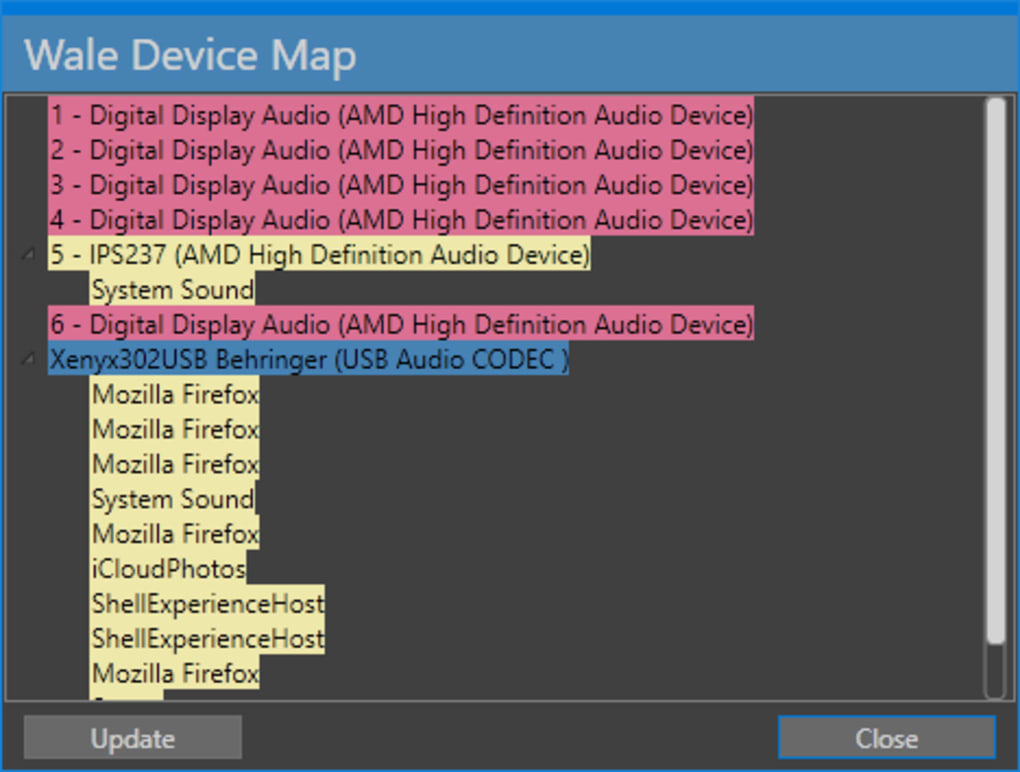
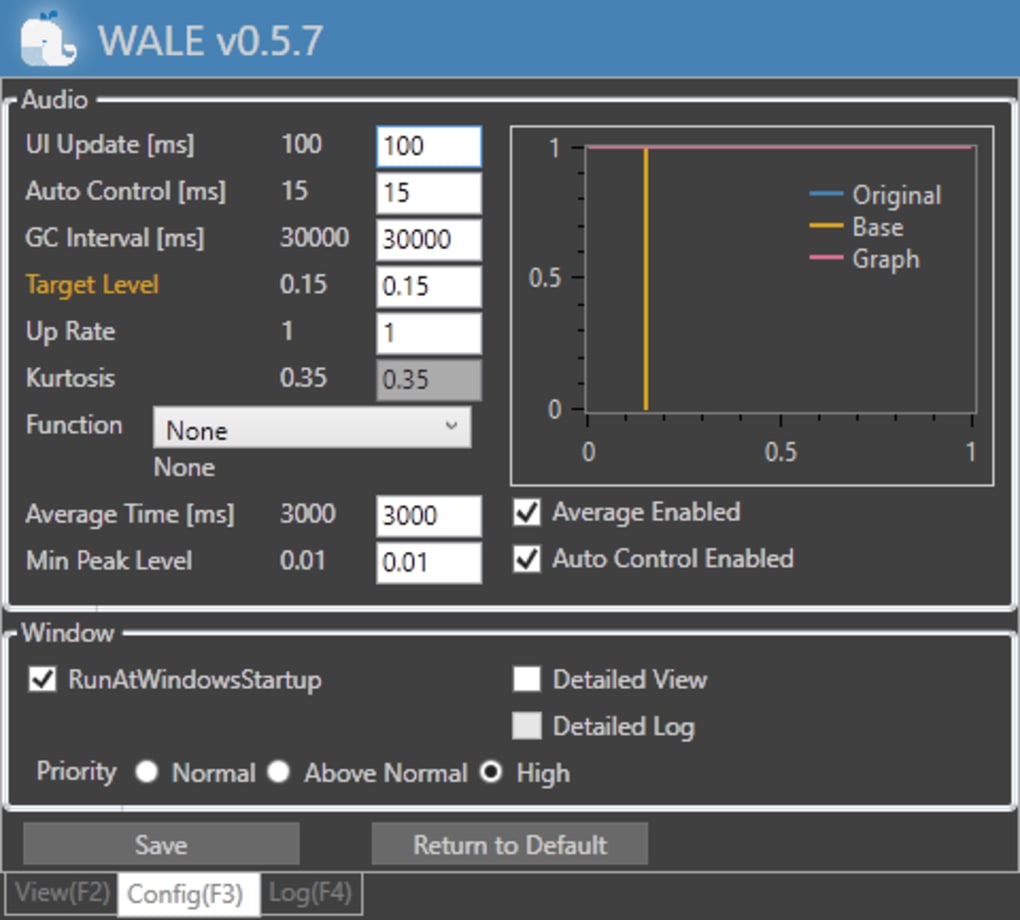
- In the main window, you’ll see a list of running applications. Adjust each slider, enable the equalizer icon, and explore the “Advanced Settings” button for bass/treble controls.
- To preserve your configuration, click the Save Preset icon and give it a memorable name. You can load this preset anytime from the Presets dropdown.
The tool runs in the background and automatically restores your last saved profile after a system reboot. For users who prefer a silent startup, you can disable the tray icon via the Settings menu.
Pros, Cons, and Frequently Asked Questions
Pros
- Granular control: Adjust volume, bass, and treble per application, something the native Windows mixer cannot do.
- Free and regularly updated: No hidden fees, and the developer releases patches to keep up with new Windows releases.
- Lightweight footprint: Uses minimal system resources, making it suitable for low‑end PCs.
- Exportable presets: Share your audio profiles with friends or switch between gaming and media presets instantly.
- Command‑line support: Ideal for power users who want to script volume changes.
Cons
- Industrial UI: The interface lacks modern aesthetics and can feel dated to casual users.
- No built‑in visual equalizer graph: Advanced users may miss a real‑time frequency display.
- Limited feature set compared to paid competitors: No built‑in peak limiter or resource‑management panel.
- Cannot increase volume beyond the application’s max setting: If a game is set to 0 %, WALE cannot boost it.
- Learning curve: The terminology and data output can be confusing for non‑technical users.
Frequently Asked Questions
Can WALE boost the volume of a game that is already at 100 %?
Yes. WALE applies a post‑processing layer, so if a game’s internal volume is at maximum, the tool can still add a modest boost (usually up to +6 dB) without distortion.
Is the software safe to use on corporate computers?
Absolutely. WALE is a free, open‑source utility with no hidden malware. It only interacts with the Windows audio stack and does not collect personal data unless you opt‑in to telemetry.
Does WALE work with headphones and Bluetooth audio devices?
Yes. The tool processes audio after it leaves the application, so any output device – wired, wireless, or virtual – receives the adjusted signal.
Can I set a default “mute” profile for background apps like Skype?
You can. Create a preset where the Skype volume slider is set to 0 and save it. WALE will apply that preset automatically on startup if you enable “Load last preset on launch.”
Is there a way to automate volume changes via scripts?
Yes. WALE includes command‑line arguments such as WALE.exe –set “Chrome” 70 to set Chrome’s volume to 70 %. Combine these with batch files or PowerShell scripts for automation.
Conclusion – Is Windows Audio Loudness Equalizer Right for You?
Windows Audio Loudness Equalizer fills a niche that many Windows users overlook: the ability to fine‑tune audio on a per‑application basis without paying for premium software. Its free price tag, lightweight design, and robust feature list make it an attractive option for gamers, podcasters, and anyone who struggles with uneven volume levels across their desktop. While the UI may feel dated and the feature set isn’t as expansive as paid competitors, the core functionality works reliably, and the community‑driven updates keep it compatible with the latest Windows releases.
If you value control over your sound environment and don’t mind a utilitarian interface, WALE is a solid addition to your Windows toolkit. For those seeking a polished visual equalizer or advanced peak‑limiting, you might want to explore premium alternatives. Either way, trying WALE is risk‑free – download, install, and test the presets in minutes.
Ready to take command of your desktop audio? Click the button below to download Windows Audio Loudness Equalizer now and start customizing your soundscape today.







